

Creating your account and inviting your team
How do I sign my company up to TakeoffQS and invite my team?
One person from your company creates the account. That person becomes the Super Admin and invites everyone else from Account.
What to watch for
- New company accounts are approved by a person. TakeoffQS checks every new company account before it goes live. This happens during New Zealand business hours, so sign up well before the day you need to start work.
- Pick the right country when you sign up. New jobs start in the country you choose.
- Invite your team. Do not ask them to sign up on their own. An invitation puts them straight into your organisation with the role you chose. Invited team members do not need approval.
- Inviting needs the right role. Super Admin, Org Admin or Site Admin can invite members. If you cannot see Members, your role cannot invite.
- There is only one Super Admin. You cannot invite a second Super Admin. Give office managers Org Admin instead.
- Invitation links expire. The email says how long the link lasts. If it has expired, send it again with Resend.
Create your account
-
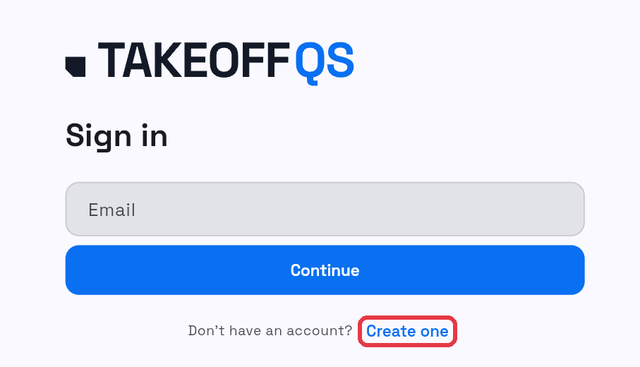
Go to app.takeoffqs.com. On the Sign in screen, under the Continue button, select Create one.
-
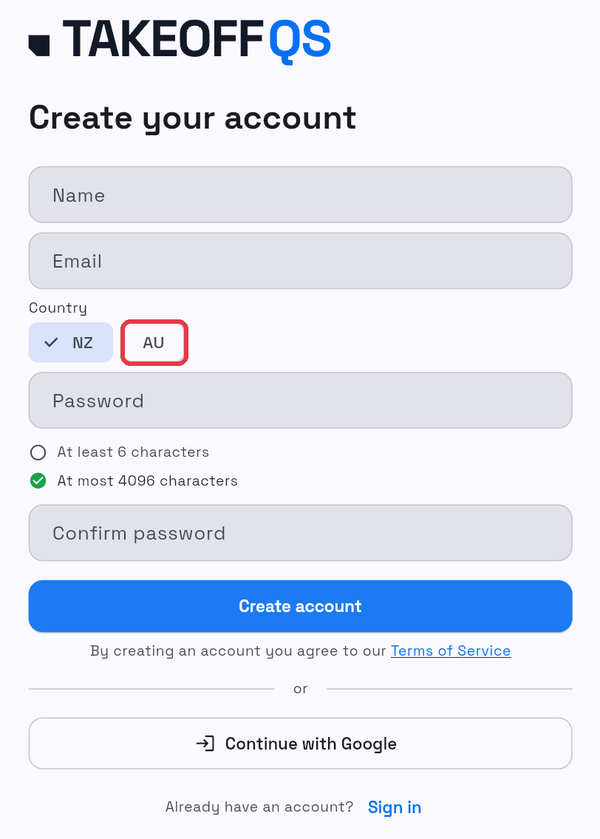
On Create your account, enter your Name and Email.
-
Under Country, select NZ or AU.
-
Enter a Password of at least 6 characters, then enter it again in Confirm password.
-
Select Create account. To use your Google account instead, select Continue with Google.
-
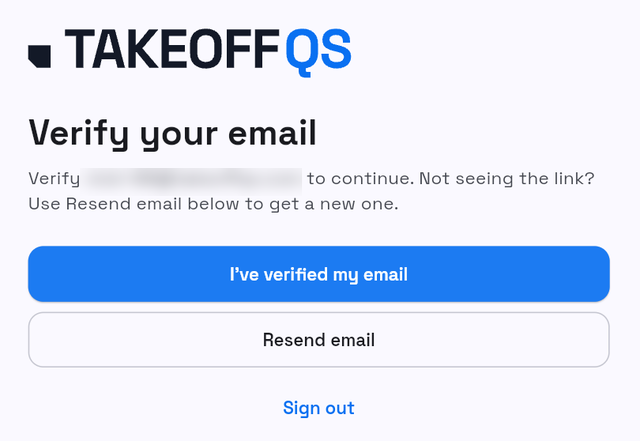
If you see Verify your email, open the email TakeoffQS sent you and select the link in it.
-
Return to TakeoffQS and select I've verified my email. If the email has not arrived, select Resend email.
Success: you see Your account is awaiting approval.
Wait for approval
- Leave the Your account is awaiting approval screen open, or come back to TakeoffQS later and sign in.
- Select Check again to see whether your account has been approved.
Success: TakeoffQS opens on Home. If the screen says your account is still awaiting approval, nothing has changed yet. Try again later.
Invite your team
You need the Super Admin, Org Admin or Site Admin role.
-
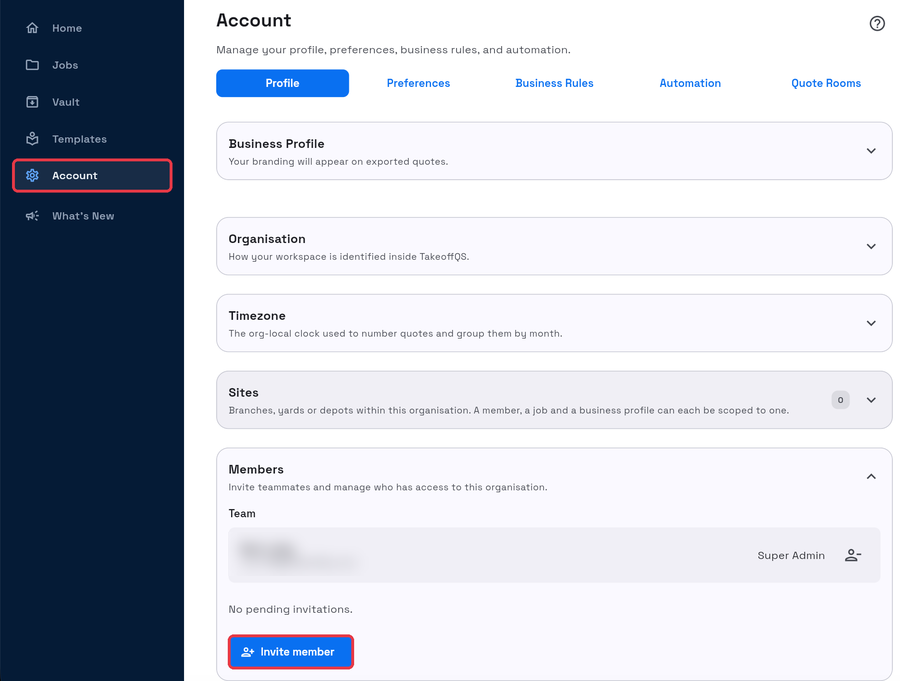
Select Account in the left rail.
-
On the Profile tab, open Members.
-
Select Invite member.
-
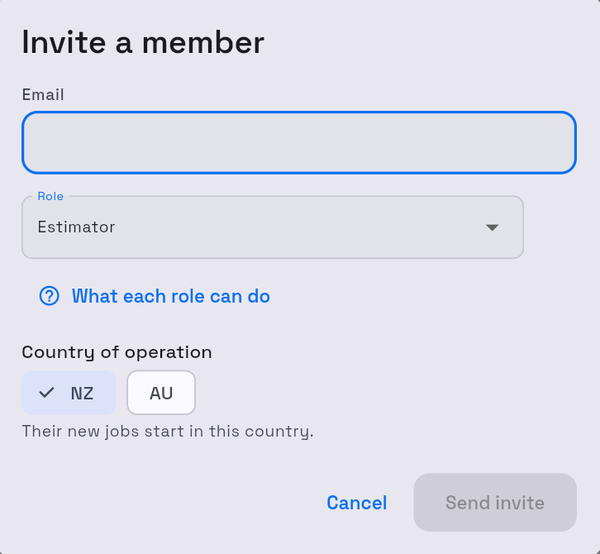
In Invite a member, enter the person's Email.
-
Under Role, choose a role. Estimator suits people who upload plans, measure and price jobs. Select What each role can do to compare the roles.
-
Under Country of operation, select NZ or AU. Their new jobs start in this country.
-
Select Send invite.
Success: the dialog changes to Invite created. Select Done. The person is listed under Pending invitations until they accept.
To send the link yourself, for example by text message, select Copy link on Invite created before you select Done.
Repeat these steps for each person.
What your team member does
- Open the email from TakeoffQS and select Accept invitation.
- Sign in, or create an account, with the same email address the invitation was sent to.
Success: they see Joining your organisation… and then land in your organisation.
If they see This invite is for a different account, they are signed in with a different email address. They need to sign out, then sign in with the invited email address.
Manage pending invitations
Under Members, Pending invitations lists everyone who has not accepted yet.
- Resend sends the invitation email again. Use it when the email went missing or the link has expired.
- Revoke cancels the invitation. You will be asked Revoke this invite? before it is cancelled.