

Exporting
How do I export measurements or a priced BoQ, and how do I generate a quote?
From Pricing you can download measurements and priced artefacts, or generate a commercial quote. These are different buttons and different flows.
What to watch for
- Export opens a two-step chooser: kind first, then format options. Generate Quote is a separate control — it is not one of the three export kinds.
- Elemental cost plan is an export kind (and also has a Cost Plan entry on the title bar). It is not a full BoQ line dump.
- A clean export often finishes without a success toast — check your browser downloads. Warnings surface as Exported with N warning(s).
- Generate Quote is available to every role — Estimator, Approver, Site Admin and Org Admin.
- Writes that change priced data still need the Site Admin or Org Admin role; export downloads are available to every role when the job has data you can open.
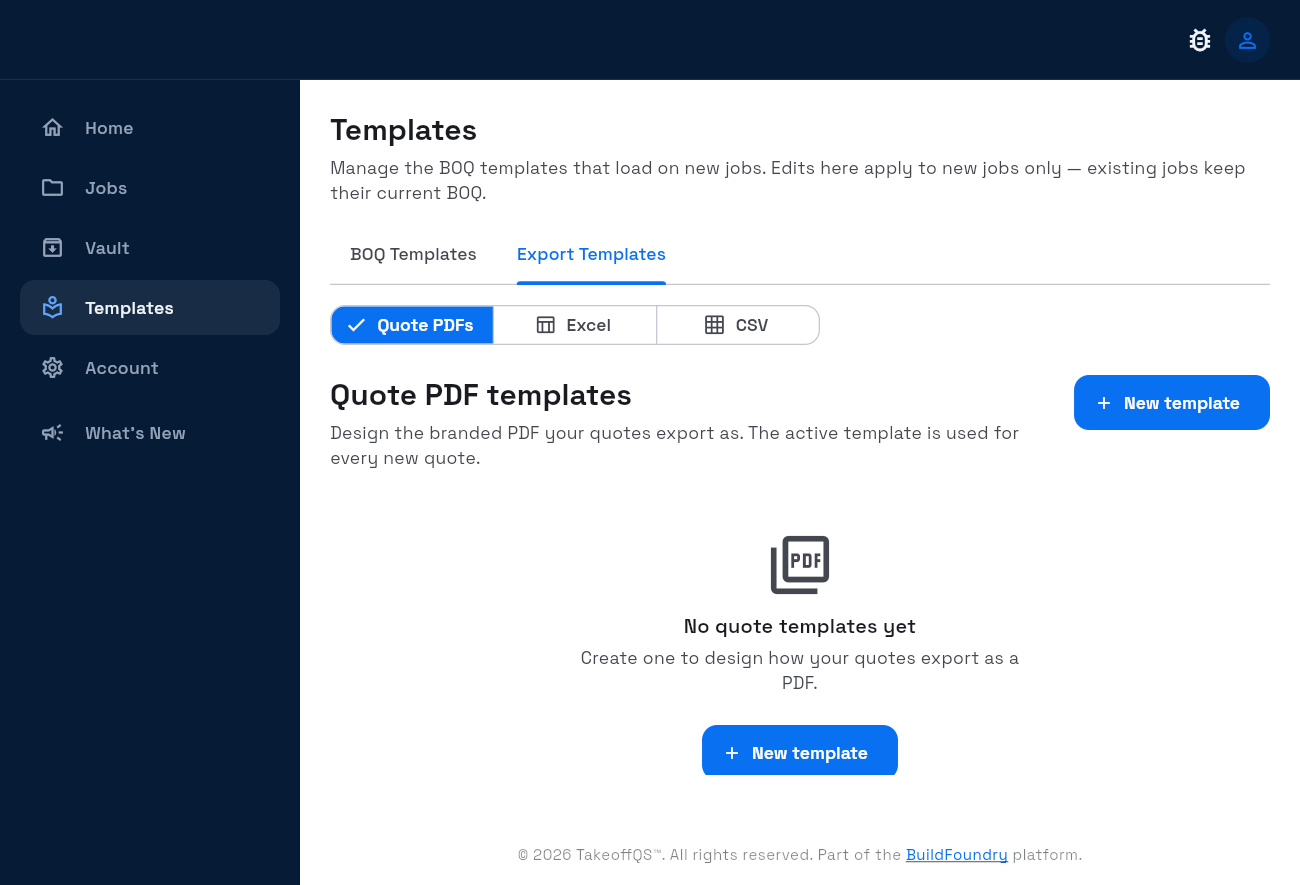
- Which export template is active for Quote PDF / Excel / CSV is managed under left-rail Templates → Export Templates (one active per format).
1. Find the deliver actions on Pricing
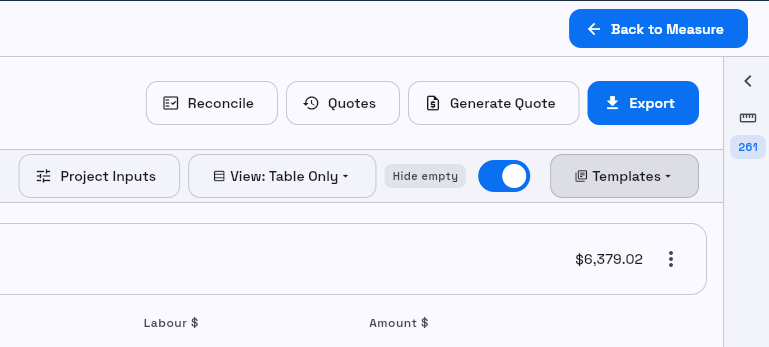
Open a job’s Pricing screen (Bill of Quantities title bar). Find:
- Reconcile
- Quotes
- Generate Quote
- Cost Plan
- Export
2. Export — choose the kind
- Select Export.
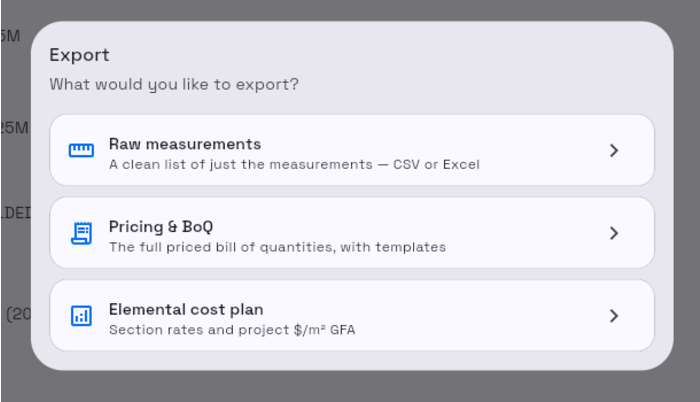
- Read What would you like to export?
- Choose one kind:
| Kind | Subtitle on screen | Typical use |
|---|---|---|
| Raw measurements | A clean list of the measurements only — CSV or Excel | Hand-off of approved takeoff only |
| Pricing & BoQ | The full priced bill of quantities, with templates | Priced BoQ file for internal or client use |
| Elemental cost plan | Section rates and project $/m² GFA | High-level elemental summary |
3. Raw measurements
- Select Raw measurements.
- Choose Format: Excel or CSV.
- Select Export.
Body copy on the panel: Exports only the approved measurements, grouped exactly like the sidebar.
Success: the file downloads. On warnings you see Exported with N warning(s) (or the singular warning form).
4. Pricing & BoQ
- Select Pricing & BoQ.
- Choose Format: Excel, CSV, or PDF.
- Set Custom annotations to Aggregated or Per instance when shown.
- Under Template, pick an export template or No template.
- Set Group by to By section or By category when shown.
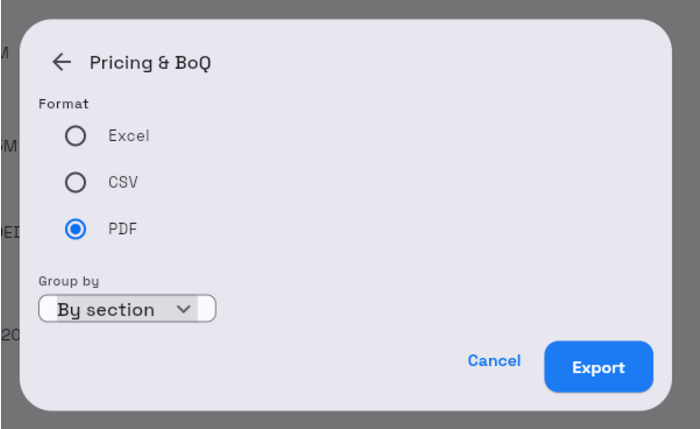
- Select Export.
Success: download starts; toast only when the server returns warnings.
Active export templates (the list the Template dropdown draws from) live here:
5. Elemental cost plan
Two equivalent entries:
- Export → Elemental cost plan, or
- Title bar Cost Plan
- Confirm the panel title Elemental cost plan.
- Choose PDF, Excel, or CSV (default is PDF).
- Select Export.
Body copy: Section rates and project $/m² GFA — not a full BoQ line dump.
6. Generate Quote
- Select Generate Quote on the Pricing title bar.
- Complete Commercial terms:
- Markup %
- Contingency %
- Drawing stage (None, Preliminary, For Tender, For Construction, As Built)
- Markup reasons (optional)
- Quote template
- Cover letter / Customer notes when shown
- Select Generate quote (sentence case on the dialog button).
You can also open past quotes from the left rail Quotes list.
Success: a snackbar shows Quote {number} generated, or Quote {number} generated as a draft — the project is not yet fully approved for pricing. Use Open quote on the snack when you need the quote sheet immediately.
If generation fails, the error is prefixed Quote generation failed.
What’s next
- Welcome overview
- Export templates — one active Quote PDF / Excel / CSV template
- BOQ templates and Vault for org setup