

BOQ template import/export
How do I move a BOQ template between organisations, and re-link its products?
Move BOQ templates between organisations or backups with CSV only.
What to watch for
- Import accepts CSV, not Excel or PDF.
- An import becomes your organisation's default template for its job type, replacing the previous default for that job type.
- Product bindings do not cross accounts. Products are matched against your own price lists; any line still needing a product is listed in the result so you can re-link it.
- Import and create need the Site Admin or Org Admin role. Export from a row stays available to every role.
1. Export a template
- Open Templates → BOQ Templates.
- On the template row kebab, select Export.
- Confirm the snack Exported {filename}.
2. Import a template
- Select Import template (shows Importing… while the request runs).
- Choose a CSV file from the picker. You are asked to confirm the job type only when the file does not name one your organisation has enabled.
- When the import finishes, the Template imported dialog shows:
- which template is now your default for its job type, and which one it replaced;
- the product-matching status: either every product is matched, or how many lines still need a product;
- every line that still needs a product, with the reason for each: lines whose product could not be matched, and lines that name no product at all.
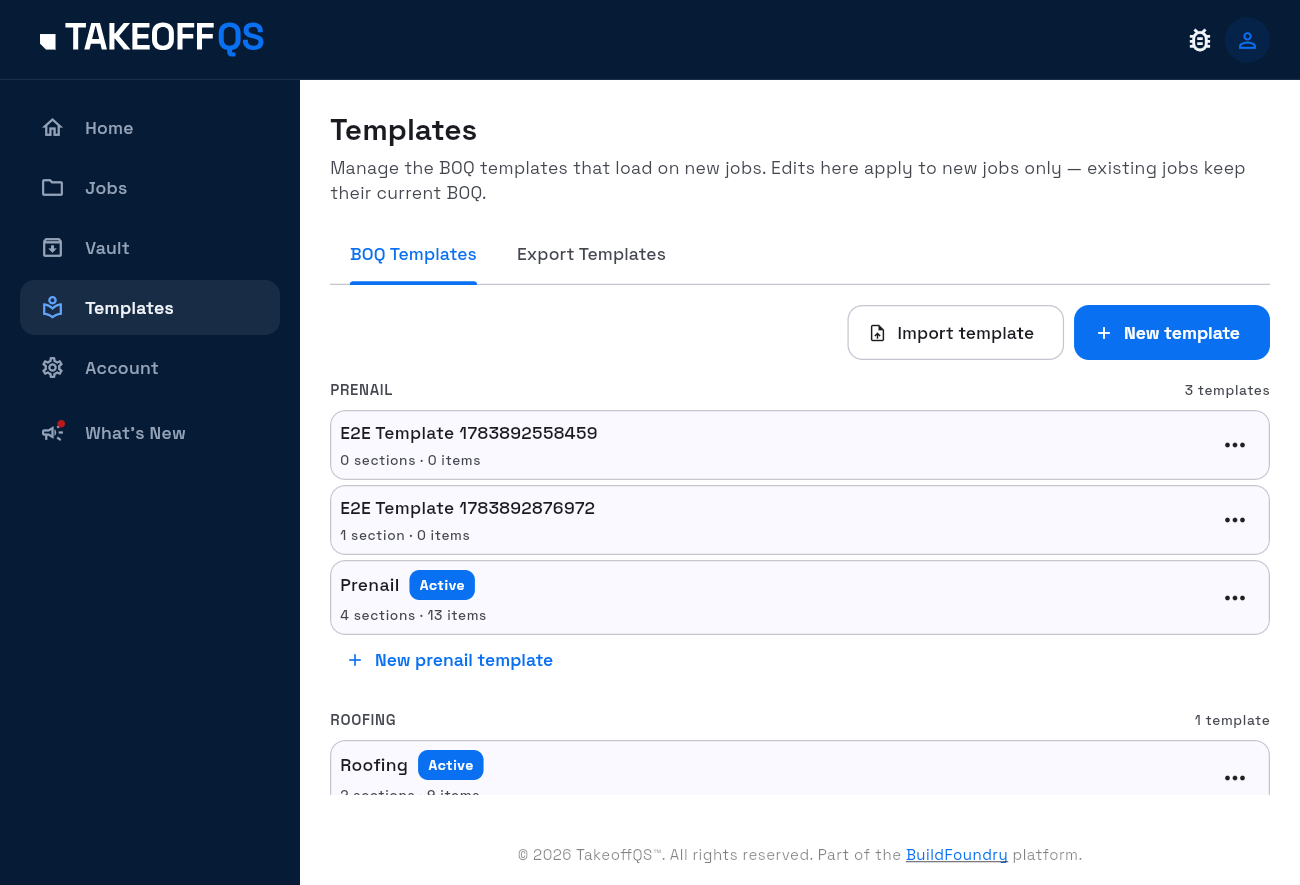
Success: the new template appears in the list as the default for its job type, so new jobs of that type start from it. Select Start a new job to use it straight away. If the dialog says lines still need a product, match them before you rely on the template for pricing: until you do, those lines have no material to price on new jobs.
3. Re-link products after import
- Open the imported template.
- For each line that still needs a product, use Set material / linked materials controls.
- Work through every line the import listed until none still needs a product.
Do not expect imported product links from another organisation to resolve automatically.
What’s next
- BOQ templates — create and activate
- Export templates — Quote PDF / Excel / CSV builders