

Welcome to TakeoffQS
What is the TakeoffQS workflow, from a plan PDF to a priced export?
Home is where every job starts. The left rail is the whole app: Home, Jobs, Vault, Templates and Account.
Open Jobs to find, reopen and review work already created. If your organisation emails plans into TakeoffQS, the emailed-plans control also appears on this screen.
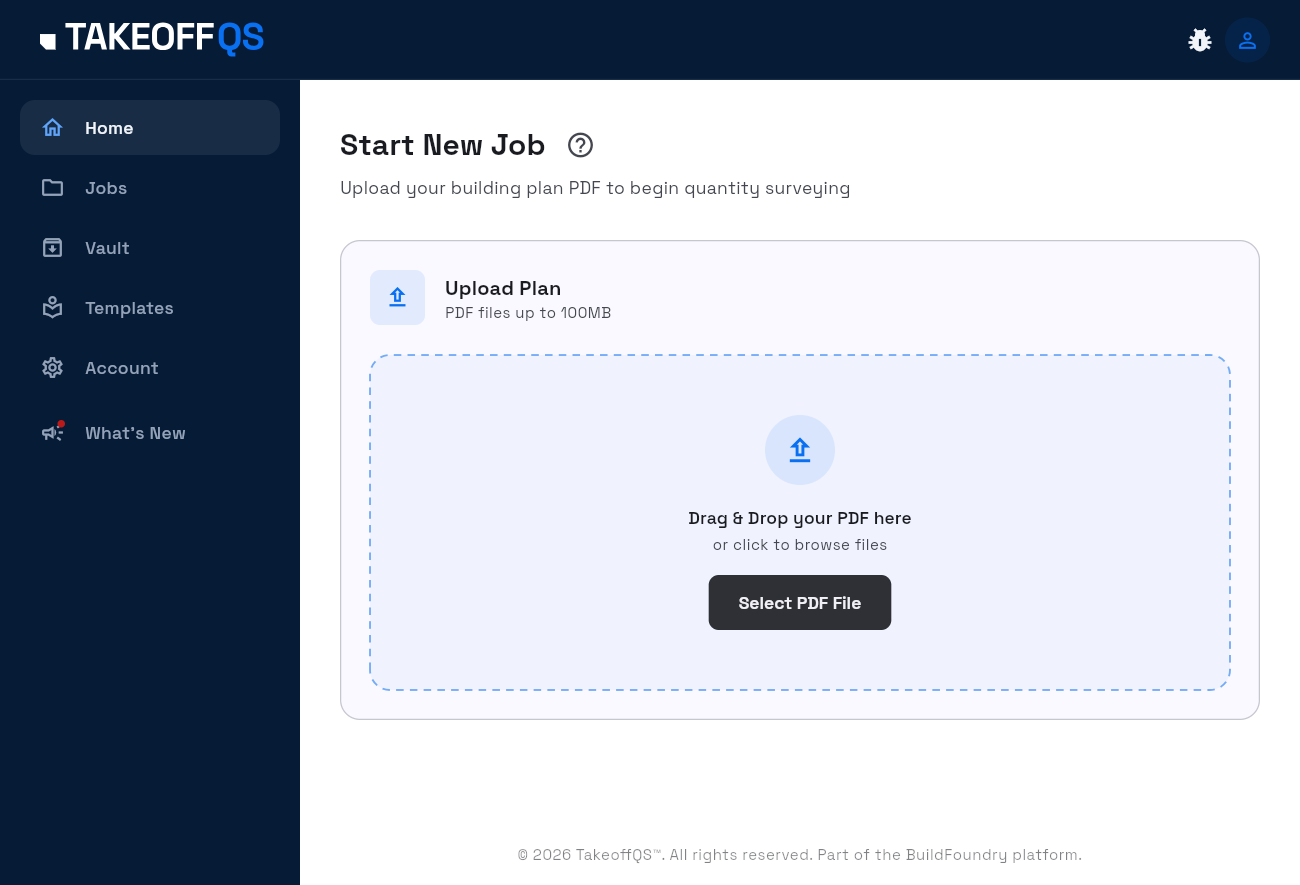
TakeoffQS takes you from a plan PDF to a priced export:
- Create a job and upload a plan set.
- Verify the takeoff — scale, detections, and geometry on Measure.
- Review materials generated from the approved measurements and BOQ template.
- Price the job and apply a BOQ template.
- Export raw measurements, the priced BoQ, an elemental cost plan, or Generate Quote.
Core workflow guides
- Creating a job & uploading a plan set
- Verifying the takeoff — scale, detections, geometry
- Drawing and editing annotations
- Reviewing materials before pricing
- Pricing a job & applying a BOQ template
- Exporting
Templates and Vault
The left rail also has Templates and Vault. They are separate destinations:
- Templates — BOQ templates, import/export, export templates
- Vault — import a price list, pricebook, suppliers, labour rates
Help and product updates
- Open your user menu and select Help centre to open this help centre in a new tab.
- Select What's New in the left rail to open the TakeoffQS product changelog.
- Look for the help icon on a page heading when you need the guide for the screen you are using.
What your role can do
| To do this | You need to be |
|---|---|
| Create jobs, upload plans, approve takeoff on Measure | Estimator, Site Admin or Org Admin |
| Edit templates, Vault imports and price changes, most Pricing writes | Site Admin or Org Admin |
| Generate Quote on Pricing | any role |
Where your role cannot write, the button is hidden rather than shown disabled. That is intentional — not a broken app. Full detail: Roles & permissions.