

Your account
Where do I change my business profile, members, preferences and business rules?
The Account page groups every setting into tabs so you see one group at a time. Open Account in the left rail.
Which tabs and cards you see depends on your role — see Roles & permissions. A missing card means your role cannot use it, not that the app is broken.
Profile
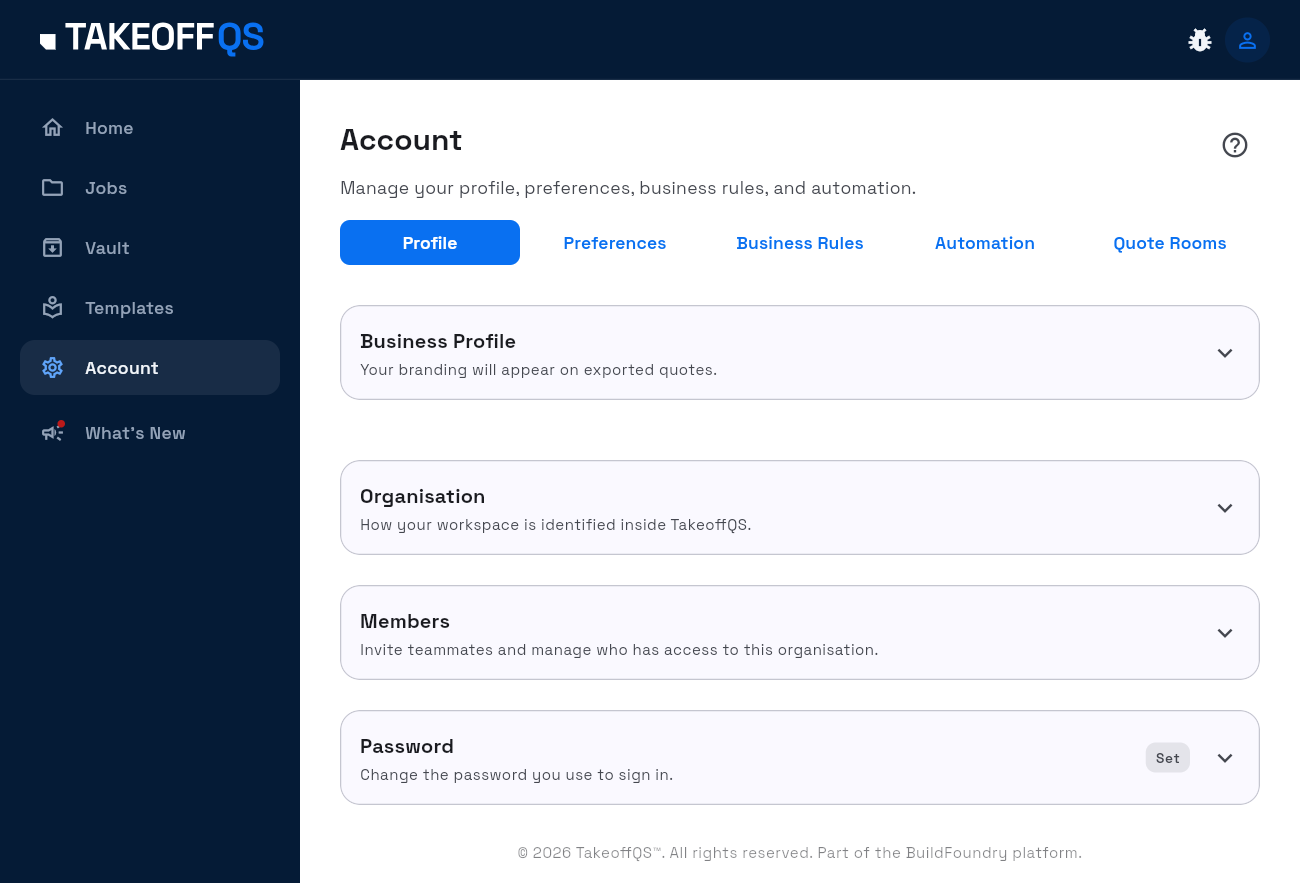
Your per-account essentials:
- Business Profile — the business details and logo shown on exported quotes.
- Email plans in — the address that accepts plans by email.
- Organisation — the organisation name and identity. Editing needs the Site Admin or Org Admin role; the delete zone is Org Admin only.
- Members — invite teammates with Invite member, manage pending invitations, and change a member's role from the dropdown on their row. Needs the Site Admin or Org Admin role.
- Password — select Change password and follow the prompts.
- Delete account — remove your own account. This is permanent.
Preferences
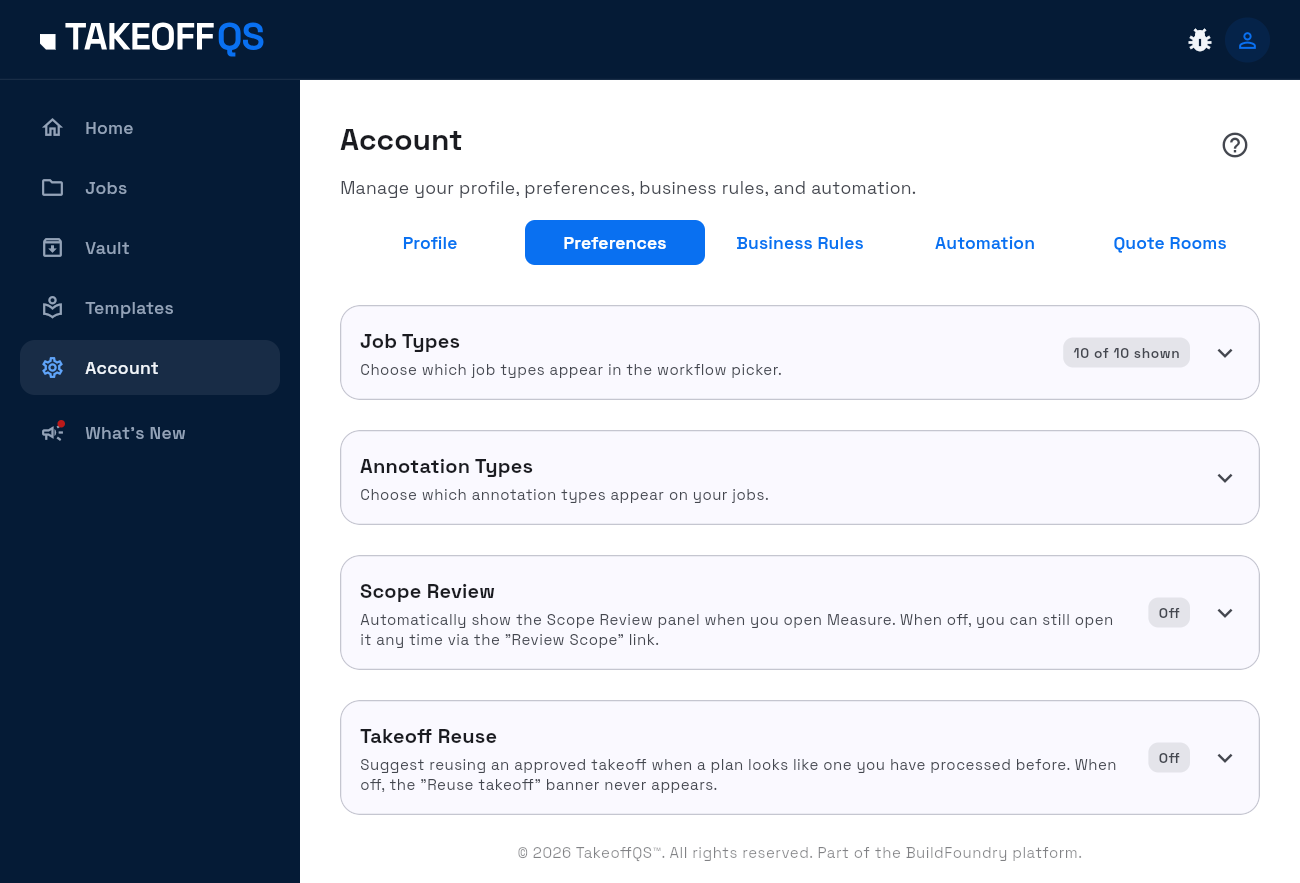
Your own display defaults — Job Types, Annotation Types, Scope Review, Takeoff Reuse, and Measure Cursor. These affect only your login, not the rest of the organisation.
For the complete steps, see Customising workflow and measurement settings.
Business Rules
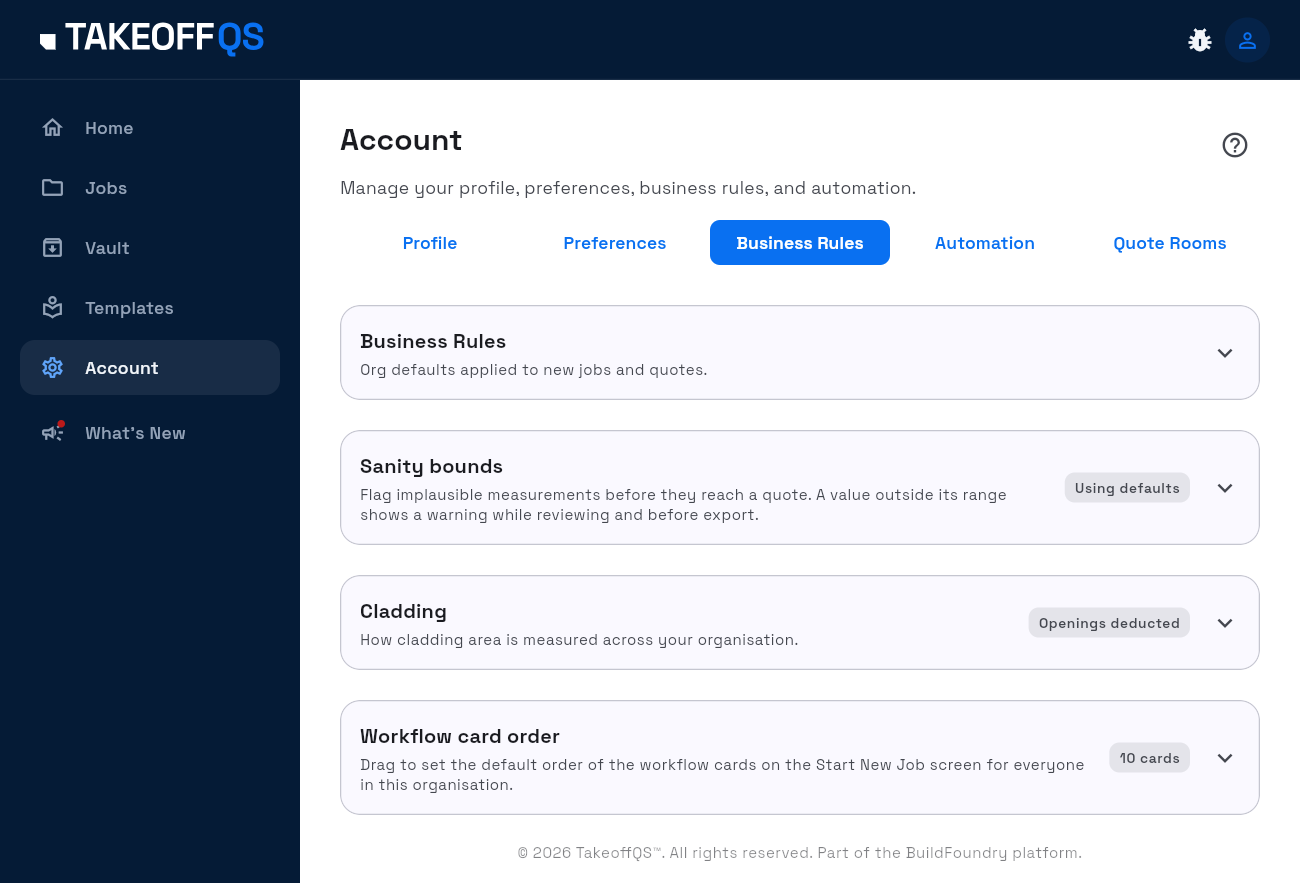
Organisation-level defaults and guardrails:
- Business Rules and Sanity bounds — the defaults applied to jobs and the sanity checks on measurements.
- Cladding and Workflow card order — need the Site Admin or Org Admin role.
Changing these affects every job in the organisation. Check with your team before editing.
For cladding, bracing, sanity bounds and workflow-order steps, see Customising workflow and measurement settings.
Automation
The auto-approval and extraction toggles:
- Approval Policy — what the app may auto-approve, with effectiveness stats below it.
- Toggles for Site Admin and Org Admin only: Plan quality, Margin simulator, Estimating Desk, Desk turnaround, default roof pitch, and the commercial-guard warning.
- Client quote portal — the organisation's quote portal rollout.
Two more tabs appear only when your organisation qualifies: Quote Rooms (set up supplier quote rooms) and Supplier Analytics (how those rooms are performing). If you do not see them, your organisation has not enabled the feature or your role cannot use it.