BOQ templates
How do I create a BOQ template, and how do I make one active?
BOQ templates are the bill-of-quantities skeletons that load when a new job starts. They live under left-rail Templates, not in the Vault.
What to watch for
- Edits here apply to new jobs only. Existing jobs keep their current BoQ.
- Only one template can be Active per job type.
- Write actions need the Site Admin or Org Admin role. Without it you can open and export, but not create, import, activate, or delete.
1. Open Templates
- In the left rail, select Templates.
- Stay on the BOQ Templates tab (not Export Templates).
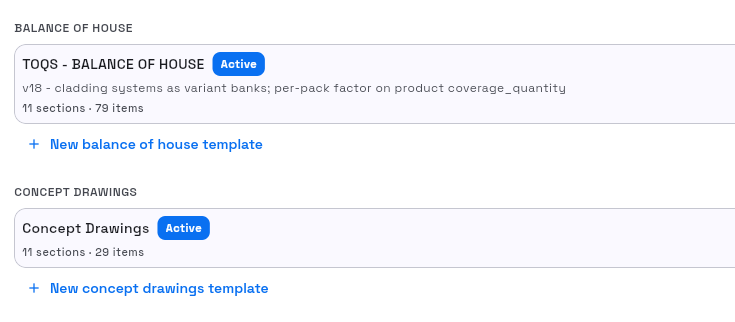
Success: you see job-type groups (for example PRENAIL, ROOFING), and the New template button when you are a Site Admin or Org Admin.
2. Create a template
- Select New template.
- Choose a mode:
- From default — seeds the job type’s strategy sections.
- Duplicate — copies an existing template.
- Blank — empty template for that job type.
- Set Job type and Template name (and Description (optional) when shown).
- For Duplicate, pick Source template.
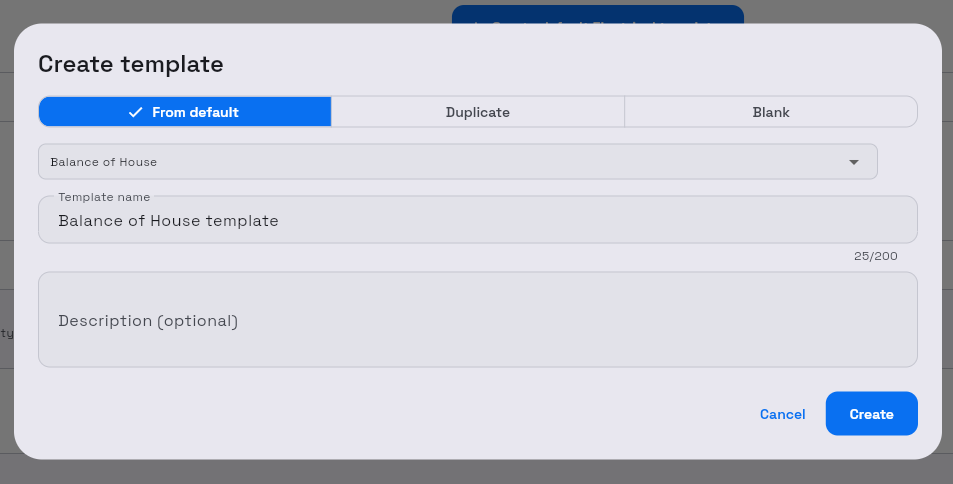
- Select Create (or Duplicate). The button may show Creating… / Duplicating….
Success: snack or list update with Template created, and the new row appears under its job type.
3. Edit sections, items, and formulas
- Open a template row to open the editor (
/templates/{id}). - Read the banner: Edits here affect new jobs only. Existing jobs keep their current BOQ.
- Use Add section, then Add item inside a section.
- Set item description, formula (or No formula), and Set material / Linked as needed.
- Use Variable reference when you need formula variables.
- Use the kebab for Duplicate template or Delete template when required.
Success: changes save on the editor; return with Back to Templates.
4. Set active and delete
- On a row that is not active, open the kebab and select Set as active.
- Confirm the Active badge moves to that template for the job type.
- To remove a template, kebab → Delete, confirm Delete template?, then Delete.
Existing jobs that already used the template are not rewritten.
Related: Export Templates tab
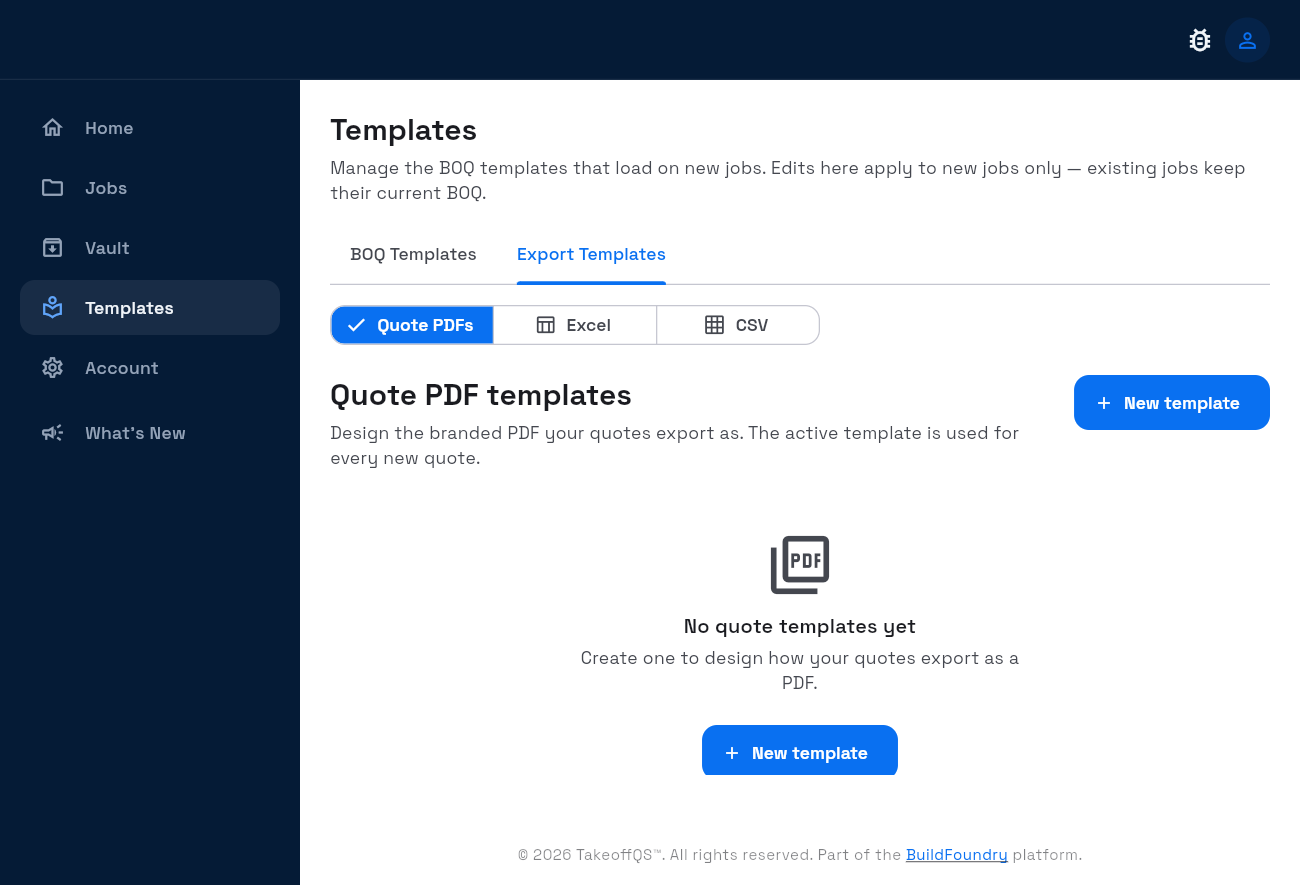
The same Templates screen hosts Export Templates for Quote PDF / Excel / CSV (not BOQ line skeletons):