

Export templates
How do I choose which Quote PDF, Excel or CSV template my exports use?
Export templates control how priced jobs render as Quote PDF, Excel, or CSV. They are separate from BOQ templates and from the Vault.
What to watch for
- One active template per format (Quote PDF, Excel, CSV). Setting another active replaces the previous active for that format only.
- These templates apply when you export from Pricing / Generate Quote — they are not BOQ line skeletons.
- Writes need the Site Admin or Org Admin role.
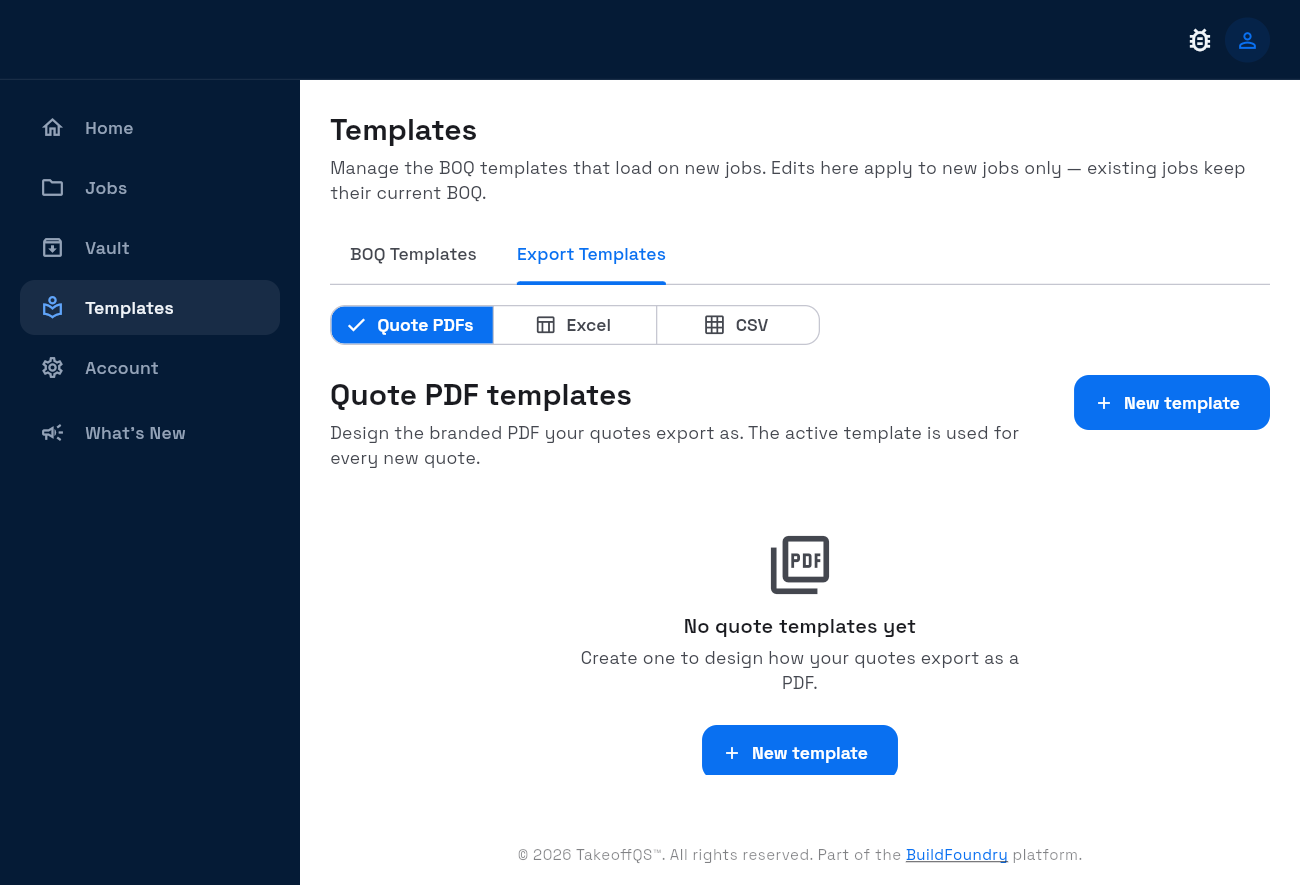
1. Open Export Templates
- Left rail Templates.
- Select the Export Templates tab (or open
/templates?tab=export).
2. Pick a format
Use the format segments:
- Quote PDFs — title Quote PDF templates
- Excel — title Excel export templates
- CSV — title CSV export templates
Each list shows which row is Active.
3. Create or activate
- Select New template (wording may be New Excel template / New CSV template for those formats).
- Complete the builder and save.
- To switch the default for that format: row kebab → Set as active.
- To remove: kebab → Delete (confirm when prompted).
Success: the Active badge sits on the template you chose for that format. New exports of that format use it.
Related
- Job export kinds (Raw measurements, Pricing & BoQ, Elemental cost plan, Generate Quote) are covered in Exporting.