

Pricing a job & applying a BOQ template
How do I price a job and apply a BOQ template to it?
Pricing begins after the measurement-driven material quantities have been reviewed. It is where the verified quantities meet material and labour rates in the Bill of Quantities.
If a product or quantity looks wrong, do not conceal the issue by changing its rate. Return to Materials or Measure and correct the underlying template, product selection or measurement.
You can complete pricing inside TakeoffQS, then export the result to Excel, PDF or CSV when it needs to be shared or loaded into another system.
What to watch for
- Templates (sidebar) manages org BOQ and export templates. That is separate from the Vault (price lists, pricebook, suppliers, labour). Templates do not live in the Vault.
- Applying a template from the in-job library updates the job BoQ without a success toast — watch the BoQ rows change and the save chip (Saved / Saving… / Save failed).
- Applying a template replaces the current materials with the selected template. Review the selected template before you apply it.
- Product bindings on imported org templates may need re-linking on the Templates screen (the import result says how many lines still need a product) — that is not fixed from Pricing alone.
- The org Templates library controls what loads on new jobs. Applying to the current job uses Pricing → Templates → Browse templates.
- Values marked Auto-suggested — verify in Project Inputs still need to be checked before pricing.
- Selecting Save & Recompute overwrites manually edited quantities on formula-driven lines.
Permissions
- Opening Pricing and reading the BoQ does not require write access.
- Editing rates, applying templates that change the job BoQ, and related writes need the Site Admin or Org Admin role. Without it, write controls are hidden rather than shown disabled.
- Generate Quote is gated separately, and every role can use it. See Exporting.
1. Open Pricing on a job
- From the job workflow breadcrumb, select Pricing.
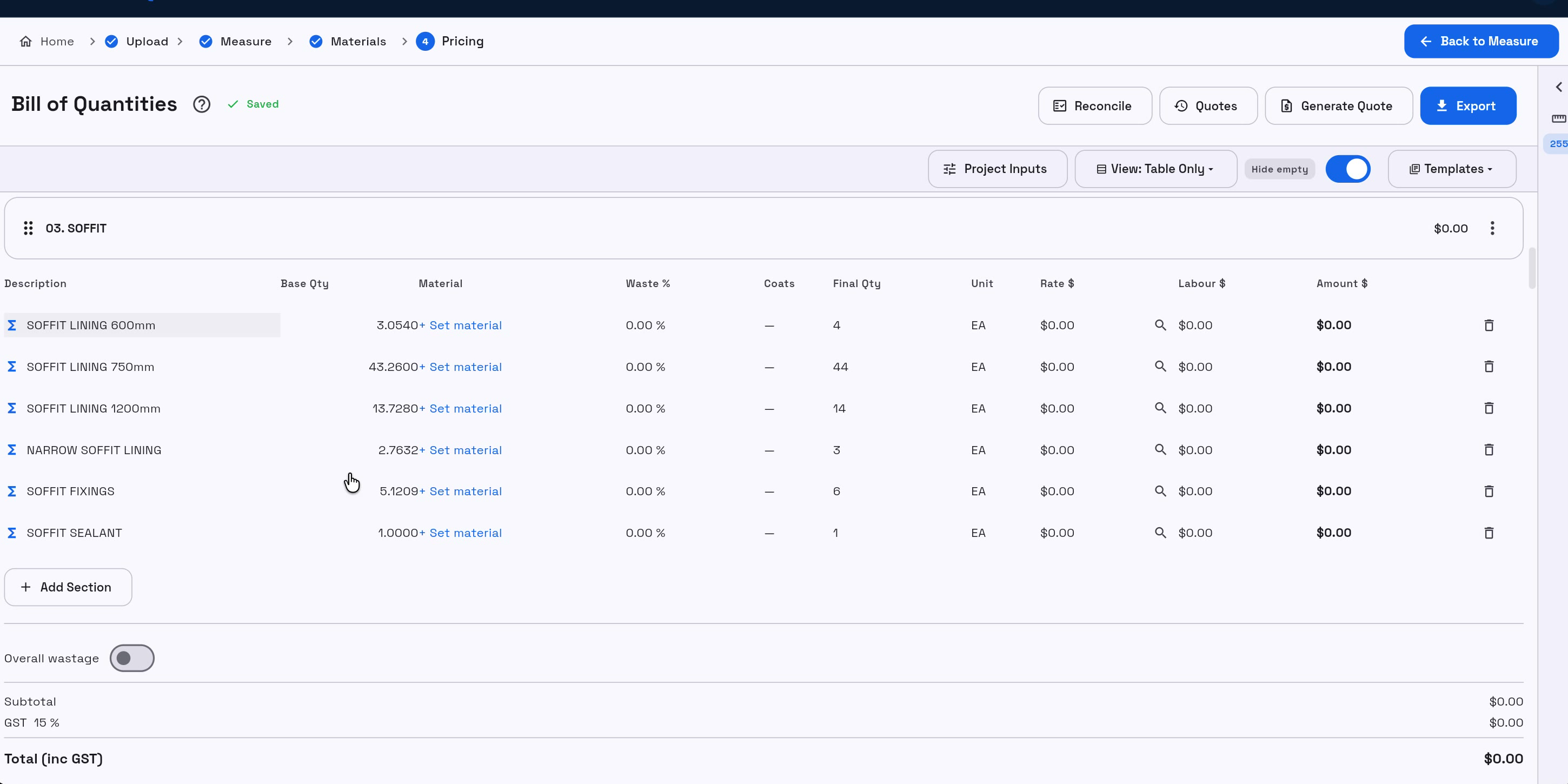
- Confirm the title card Bill of Quantities.
- Watch the save chip: Saved, Saving…, or Save failed.
Use Project Inputs when the job needs values and product choices before lines can price fully.
2. Apply a template on this job (in-job library)
- On the Pricing toolbar, select Templates.
- Select Browse templates.
- If a suggestion banner appears (You have templates for … projects. Apply one?), you can select Browse Templates from the banner instead.
- In the dialog, select My or System.
- Search with Search templates… if needed, then select a row so the preview fills.
- Review the note Applying replaces the current materials with this template.
- Select Apply.
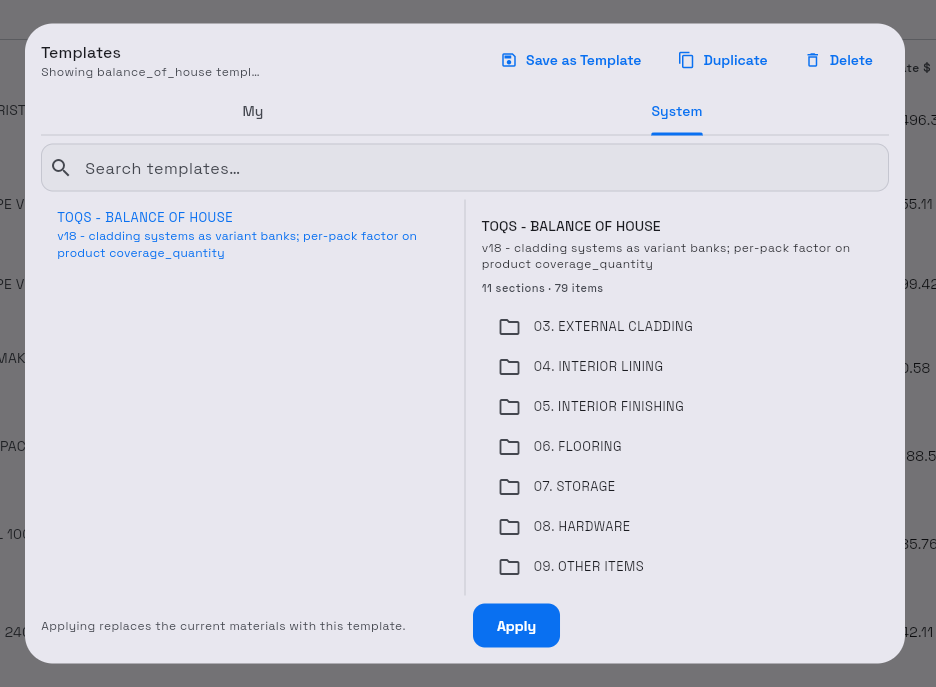
Success: the dialog closes and the BoQ reflects the template. There is no “Template applied” toast — confirm by the rows and sections on the sheet, then wait for Saved.
3. Org Templates (what new jobs start from)
Left-rail Templates → BOQ Templates is where you create, activate, and import skeletons for new jobs. Edits there do not rewrite this job’s BoQ after apply.
Full create / import / set-active steps: BOQ templates.
4. Review Project Inputs
- Select Project Inputs.
- Review every value and product choice required by the job's template.
- Check any value marked Auto-suggested — verify against the plans.
- Select Save & Recompute.
Success: the dialog closes and you will see Inputs saved — recomputed N lines. The affected quantities update in the BoQ.
5. Understand the pricing columns
- Quantity — the quantity the line is priced on, after the line's rules and wastage are applied.
- Unit — the unit used to price the product.
- Material / Product — the selected price-book product. Set material means no product is linked yet.
- Waste % — the wastage allowance already included in the quantity.
- Coats — shown only on jobs with paint lines: the number of coats on a paint line.
- Rate $ — the material rate.
- Amount $ — the resulting line total.
Each line's actions, such as Delete line, are in its ⋯ menu.
6. Set the material on a line
- Find a line showing Set material.
- Select Set material.
- Search the price book.
- Select the correct product.
Success: the selected product replaces Set material and the line's pricing updates. Products linked to the applied template may already be selected when you reach Pricing.
7. Price and check the lines
- Enter rates on material and labour cells as your process requires.
- Use Hide empty when you want unused rows out of the way.
- Keep an eye on Saved after edits.
Before exporting, confirm that no required line still shows Set material, the project inputs have been verified, and the BoQ total matches the intended scope.
What’s next
- Exporting — Raw measurements, Pricing & BoQ, Elemental cost plan, and Generate Quote