

Reviewing materials before pricing
How do I check generated material quantities before pricing a job?
Materials is the review stage between Measure and Pricing. It uses the approved takeoff measurements, the job's BOQ template and its formulas to calculate material quantities.
What to watch for
- Generated quantities depend on the approved measurements, the selected template and its product links. Review them before pricing.
- The sections on Materials come from the BOQ template applied to this job.
- A material mentioned on the plan is not automatically part of the priced BOQ. Confirm that it belongs in scope before adding or linking it.
- Priced means the material is matched to your price book and ready to add. It does not mean the material has already been added to this job.
- Needs price means the material was found on the plan but is not priced in the price book yet.
- Fix a missing or incorrect measurement at its source in Measure rather than hiding the problem downstream.
1. Continue from Measure
When the takeoff workflow is complete, select Continue to Materials.
If the job does not use material extraction, the workflow may take you directly to Pricing instead.
2. Confirm the template
Check that the correct template name is shown. The sections and products on the Materials screen come from the BOQ template applied to the job.
Changing the template can change the sections, products and formulas used to calculate the job.
If the name is wrong, select Change template and choose the correct template before reviewing the quantities.
3. Review the generated quantities
The template formulas turn approved measurements into material quantities. A formula may calculate the main material and related products such as plates, fixings or accessories.
Work through the template sections and compare the displayed products and quantities with the measured scope.
Turn off Hide empty when you need to see template sections that currently have no measured quantity.
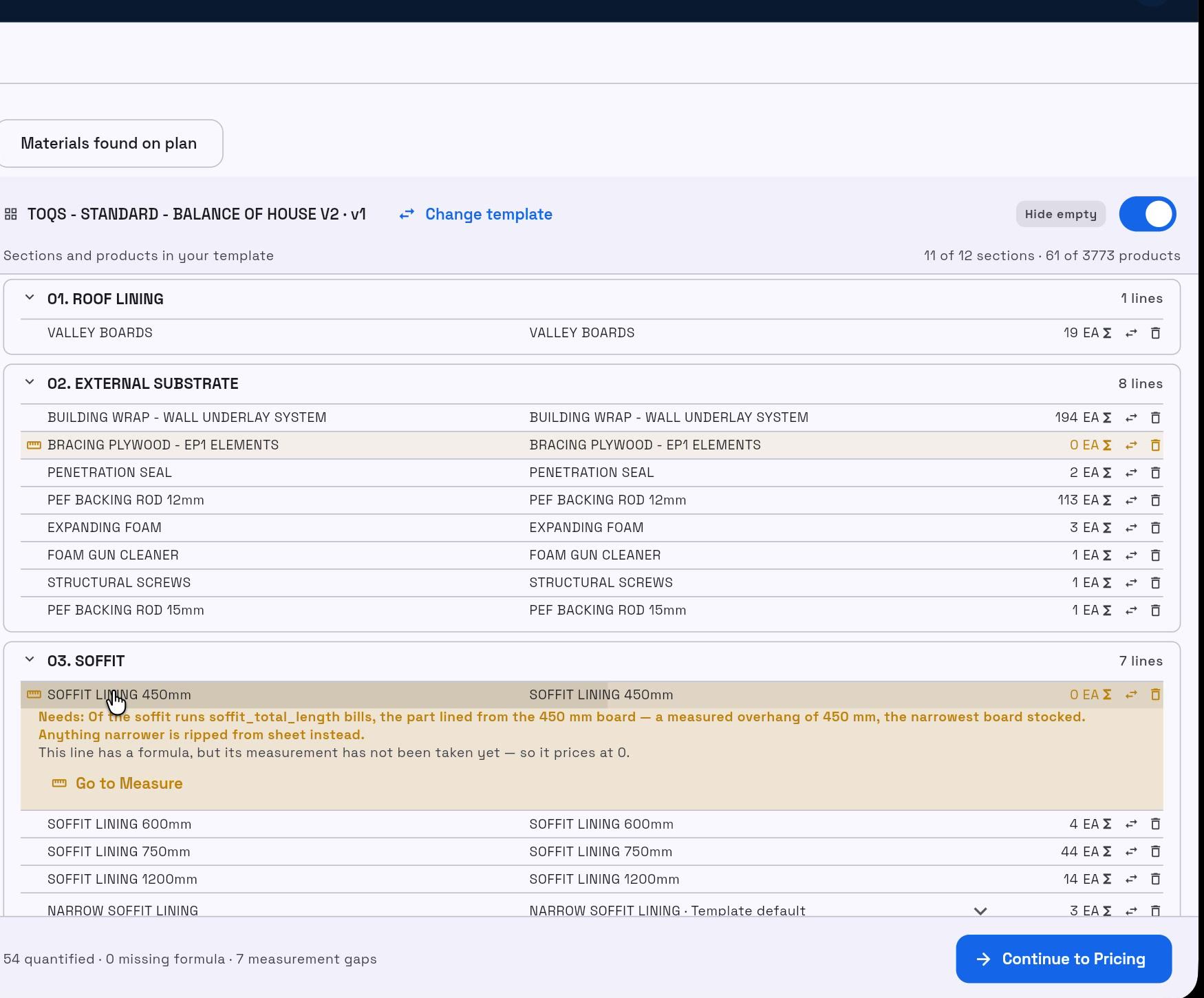
The readiness summary at the bottom separates:
- quantified lines that have a usable result
- missing formula lines that do not have a quantity calculation
- measurement gaps where a formula exists but its source measurement has not been taken
If a quantity appears incorrect, check its source before changing anything downstream:
- Expand a highlighted line to read what it needs.
- Select Go to Measure when a measurement is missing or its geometry is wrong.
- Review the template when the correct measurement is present but the expected product or calculation is missing.
- Confirm that the required product has been selected or linked.
Success: the affected quantity recomputes after its measurement, formula or product link is corrected. The readiness counts at the bottom update.
4. Review materials found on the plan
Open Materials found on plan to review materials spotted on the drawings that are not in the current template yet.
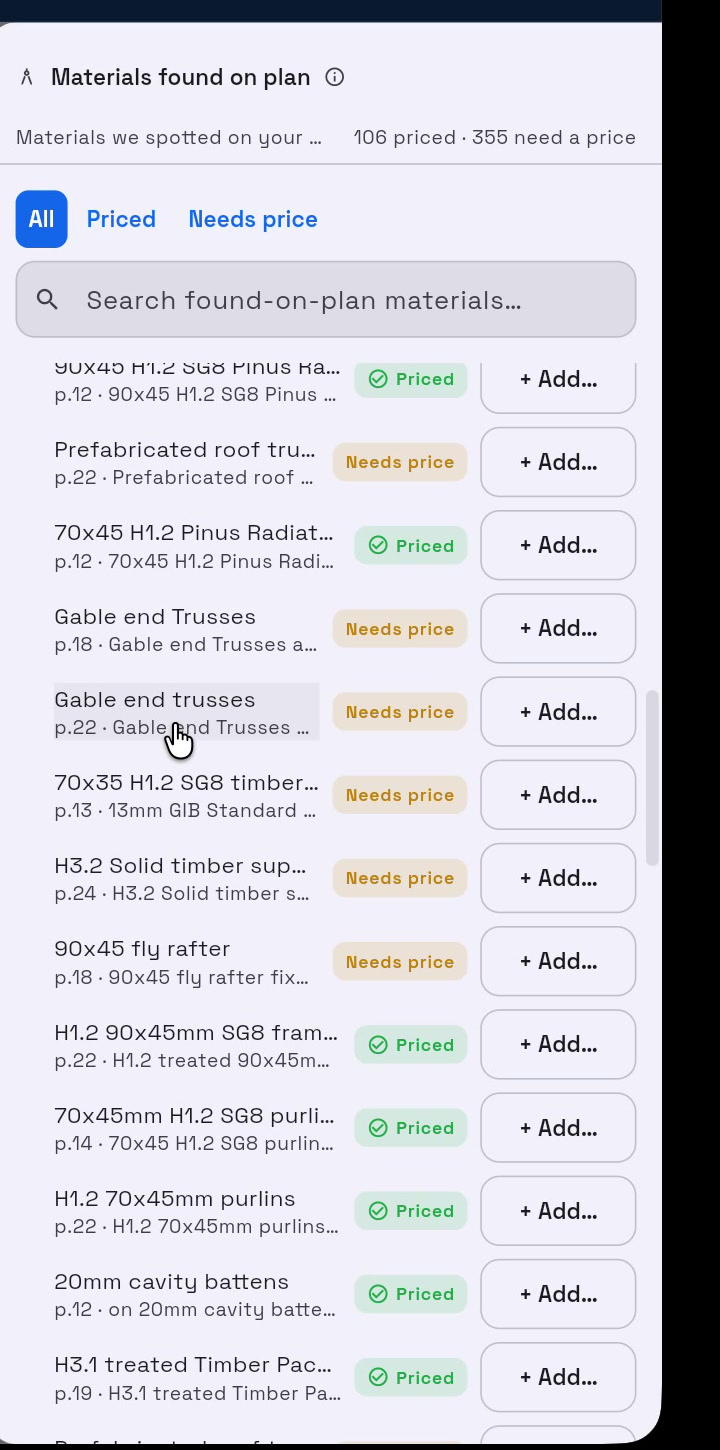
- Use All, Priced or Needs price to filter the list.
- Search when you need to find a specific material.
- Select a material description that carries a page reference to jump to its evidence on the plan.
- Confirm whether it is already represented in the BOQ, should be added, or is outside the job scope.
- Select + Add… when it belongs in the job.
The available actions are:
- Bind to a BoQ line — connect the plan material to an existing line.
- Add as a new BoQ line — create a separate line for it.
- Add to pricebook — create the price first. This appears for a Needs price item.
Use the plan reference and evidence shown for each item to confirm what the drawing actually says. Check whether the material is already represented in the BOQ, needs to be included, or is outside the job scope.
Do not assume that every material mentioned on a plan belongs in the priced BOQ.
Success: a bound material shows its BoQ-line connection, or the new line appears in the material sections ready for review.
5. Complete the review
Before continuing, confirm that:
- The correct template is applied.
- The expected measured sections have quantities.
- Unexpected empty quantities have been investigated.
- Materials found on the plan have been reviewed.
- Missing measurements have been corrected at their source.
When the material quantities are ready, select Continue to Pricing.
What's next
- Pricing a job & applying a BOQ template
- Verifying the takeoff — return here when the source measurement needs correcting