Customising workflow and measurement settings
How do I control the job types, annotations, measurement defaults and workflow order shown in TakeoffQS?
Open Account to control the job types and measurement options shown to you, and the organisation defaults used by your team.
What to watch for
- Settings under Preferences affect your login. They do not change what another team member sees.
- Annotation Types applies to new jobs. Existing jobs keep the settings they were created with.
- Business Rules contains organisation-level defaults and guardrails. Check with your team before changing them.
- Cladding, Bracing families and Workflow card order need the Site Admin or Org Admin role. The cards are hidden when your role cannot edit them.
- Cladding opening rules apply to roofing jobs only.
- Bracing families sets the starting selection for newly created projects. It does not change existing projects.
1. Open Preferences
- Open Account in the left rail.
- Select Preferences.
You will see separate sections for Job Types, Annotation Types, Takeoff Reuse and Measure Cursor.
2. Choose which job types appear
- Expand Job Types.
- Switch on each job type you want shown in the workflow picker.
- Switch off any job type you do not use.
Success: the summary beside Job Types updates to show how many job types are visible.
3. Choose which annotation types appear
- Expand Annotation Types.
- Expand the job type you want to change.
- Switch individual annotation types on or off.
- To hide a complete section, switch off the control beside the section heading. A section is not hidden until every annotation type in it is off.
Success: new jobs of that type show only the enabled annotation types. Jobs already created are unchanged.
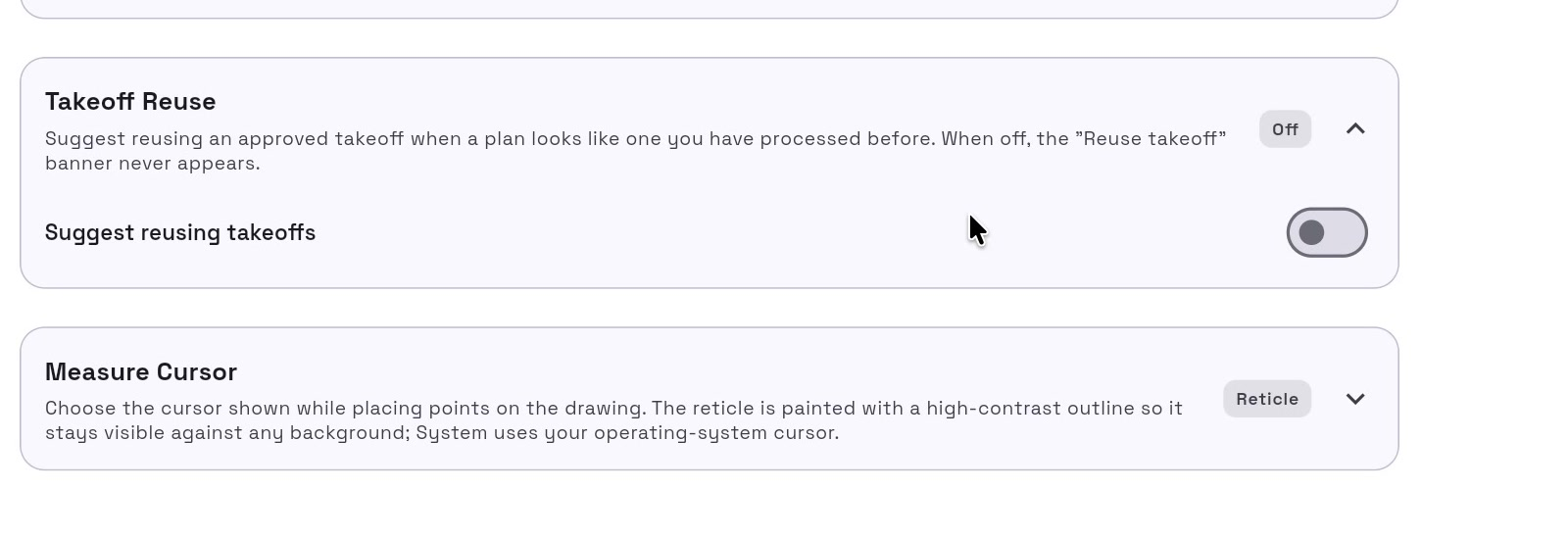
4. Turn on Takeoff Reuse
Takeoff Reuse can suggest an approved takeoff when a new plan looks like one you have processed before.
- Expand Takeoff Reuse.
- Turn on Suggest reusing takeoffs.
Success: the summary beside Takeoff Reuse changes to On. When it is off, the Reuse takeoff banner does not appear.
5. Choose the Measure cursor
- Expand Measure Cursor.
- Choose System to use your operating-system cursor, or choose a reticle style and colour.
Success: the summary beside Measure Cursor shows the selected style.
6. Review organisation defaults
- Select Business Rules.
- Expand Business Rules to review defaults used by new jobs and quotes, including GST, wastage, currency, drawing scale and numbering.
- Select Save changes after editing them.
Success: you will see Business rules saved.
7. Set measurement sanity bounds
Sanity bounds warn when a measurement falls outside the expected range. The warning appears during review and before export.
- Expand Sanity bounds.
- Enter the required minimum and maximum values.
- Select Save changes.
Success: you will see Sanity bounds saved.
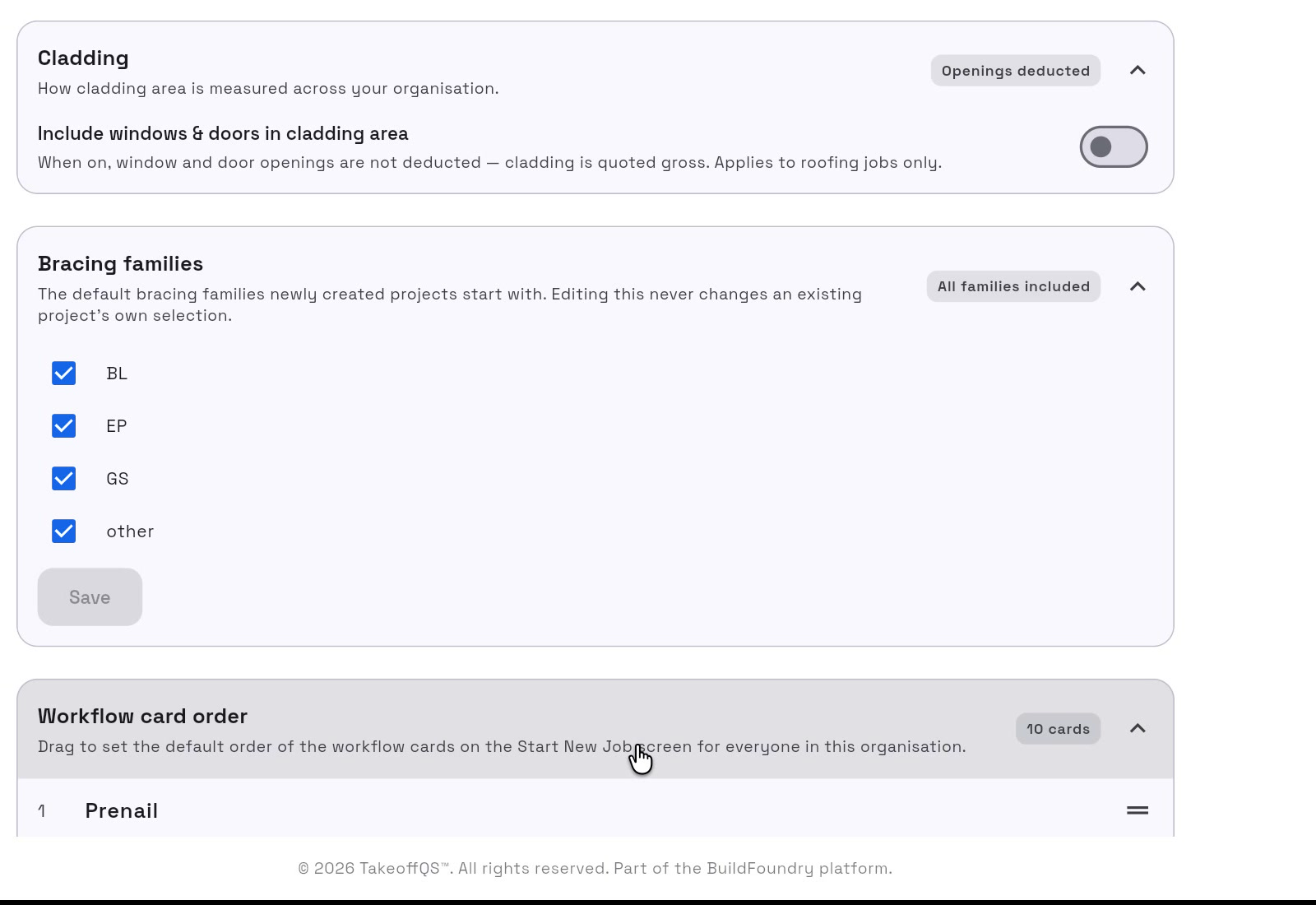
8. Set cladding and bracing defaults
To control whether roofing cladding is calculated gross or net:
- Expand Cladding.
- Turn on Include windows & doors in cladding area to quote the cladding gross.
- Turn it off to deduct window and door openings.
Success: the summary changes to Openings included or Openings deducted.
To set which bracing families new projects start with:
- Expand Bracing families.
- Select the families to include.
- Select Save.
Success: you will see Default bracing families saved.
9. Change the workflow-card order
- Expand Workflow card order.
- Drag the workflow cards into the order your team should see on Start New Job.
- Select Save order.
Success: you will see Workflow order saved. The new order becomes the default for everyone in the organisation.